---
# KVM Cluster with DRBD/GFS
**URL:** https://crunchtools.com/kvm-cluster-with-drbd-gfs2/
Date: 2010-07-06
Author: fatherlinux
Post Type: post
Summary: Background Recently, I started a project at (www.eyemg.com) to migrate from VMWare to KVM. Our standard server deployment is based on RHEL5 running on HP DL380 hardware. Given our hardware/software deployment, it made sense to align ourselves with Red Hat’s offering of KVM. We are able to achieve feature parity with VMware server while addingContinue Reading "KVM Cluster with DRBD/GFS" →
Categories: Articles
Tags: High Availability, RHEL, Virtualization
---
[toc]
# Background
Recently, I started a project at ([www.eyemg.com](http://www.eyemg.com)) to migrate from VMWare to **KVM**. Our standard server deployment is based on RHEL5 running on HP DL380 hardware. Given our hardware/software deployment, it made sense to align ourselves with Red Hat's offering of KVM. We are able to achieve feature parity with VMware server while adding live migration. At the time of this writing, live migration was not available on VMware Server and required an upgrade to ESX server with vMotion. KVM on RHEL5 provides these features at a price point that is much lower than VMware ESX Server.
Our hardware/software stack is well tested and generally very stable. This makes it an excellent base upon which to build a shared nothing HA cluster system. The goal of this system is to have complete hardware and software redundancy for the underlying virtual machine host servers.
To use live migration, both nodes of an HA cluster must have access to a live copy of the same virtual machine data files. This is traditionally done with a SAN, but we use GFS2 over DRBD to gain the advantages of having no shared hardware/software at a lower cost. We implement RAID1 over Ethernet using a Primary/Primary configuration with DRBD protocol C.
I wrote this article because there is a vacuum of documentation on the Internet with solid implementation details around KVM in a production environment. The down side of this project is that it requires extensive knowledge and expertise in the use of several pieces of software. Also, this software requires some manual installation and complex configuration. Depending on your level of experience, this may be a daunting task.
My company (www.eyemg.com) offers KVM/DRBD/GFS2 as a hosted solution. VMware's offering has the advantage of assisting with installation of many of these features, with the disadvantage of lacking a shared nothing architecture.
# Architecture
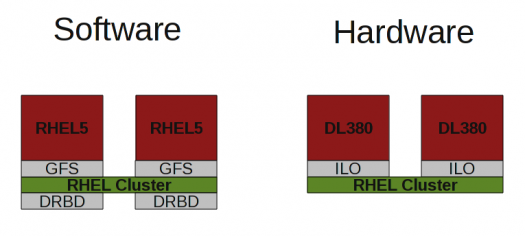
The hardware/software architecture is described in the drawing below
[](http://crunchtools.com/wp-content/blogs.dir/23/files/2010/06/KVM-Cluster-e1276021761575.png)
## Hardware Inventory
The hardware is very standard and very robust. HP servers allow monitoring of power supply/CPU temperature, power supply failure and hard drive failures. They also come equipped with a remote access card called an Integrated Lights Out (ILO). This ILO allows power control of the server, which is useful for fencing during clustering.
- (2) DL380 G6
- (16) 146GB SAS Drives 6GBps
- (2) Integrated Lights Out Cards (Built In to DL380)
- 12GB RAM, Upgradable
- 900GB Usable Space, Not easily upgradable because all of the drive slots are filled
## Software Inventory
Using GFS2 on DRBD we are able to provision pairs of servers which are capable of housing 30 to 40 virtual guests while providing complete physical redundancy. This solution is by no means simple and requires extensive knowledge of Linux, Redhat Cluster, and DRBD.
- DRBD: Distributed Replicated Block Device ((http://www.drbd.org/home/what-is-drbd/))
- GFS2: Redhat global file system. Allows 1 to 16 nodes access the same file system. ((http://www.redhat.com/docs/en-US/Red_Hat_Enterprise_Linux/5.4/html/Logical_Volume_Manager_Administration/index.html))
- CMAN: Redhat cluster manager
## Network Inventory
Two special interfaces are used to achieve functional parity with VMware Server/ESX. This allows the clustered pairs of KVM host servers access to different VLANS while communicating over bonded crossover cables for DRBD synchronization.
- Bridge: Interface used to connect to multiple VLANS. There is a virtual bridge for each VLAN.
- Bond: Three 1GB ethernet cards and three crossover cables work as one to provide a fast reliable backend network for DRBD synchronization
# Installation
## Operating System Storage
First thing is to configure each machine with one large RAID5 volume. This can be done from the smart start CD ((http://h18013.www1.hp.com/products/servers/management/smartstart/index.html)) or from within the BIOS at boot time by hitting F9. Once the operating system is installed the configuration can be checked with the following command.
hpacucli ctrl all show config
Smart Array P410i in Slot 0 (Embedded) (sn: 50123456789ABCDE)
array A (SAS, Unused Space: 0 MB)
logicaldrive 1 (956.9 GB, RAID 5, OK)
physicaldrive 1I:1:1 (port 1I:box 1:bay 1, SAS, 146 GB, OK)
physicaldrive 1I:1:2 (port 1I:box 1:bay 2, SAS, 146 GB, OK)
physicaldrive 1I:1:3 (port 1I:box 1:bay 3, SAS, 146 GB, OK)
physicaldrive 1I:1:4 (port 1I:box 1:bay 4, SAS, 146 GB, OK)
physicaldrive 2I:1:5 (port 2I:box 1:bay 5, SAS, 146 GB, OK)
physicaldrive 2I:1:6 (port 2I:box 1:bay 6, SAS, 146 GB, OK)
physicaldrive 2I:1:7 (port 2I:box 1:bay 7, SAS, 146 GB, OK)
physicaldrive 2I:1:8 (port 2I:box 1:bay 8, SAS, 146 GB, OK)
## Operating System
Currently, the version of the operating system must be X86_64 and RHEL 5.4 or above. I will not detail RHEL5 installation as there is extensive documentation. We us a kickstart installation which is burned to CD using a tool written in house which will eventually be open sourced. Remember to leave enough space for your operating system, we use 36GB on our installations. The rest of the volume will be used for virtual machine disks.
`Red Hat Enterprise Linux 5.4 X86 64 bit`
## Data Storage
Now that the operating system is installed, the next step, is to create a partition for the virtual machine disk files. To get better performance from our virtual machines, this tutorial shows how to do boundary alignment per the recommendation of EMC ((http://media.netapp.com/documents/tr-3747.pdf)) and VMware ((http://www.vmware.com/pdf/esx3_partition_align.pdf)). To achieve the most performance from this stack, the boundary alignment should really be done for guest OSes too. Currently, this cannot be achieved from kickstart.
First partition, then reboot, and align the new partiion.
`fdisk /dev/cciss/c0d0`
Create a partition that looks like the following
`/dev/cciss/c0d0p3 4961 124916 963546554 83 Linux`
Switch to advanced mode:
`Command (m for help): x`
Then hit 'p', you should see output that looks like the following. Use the start column in this advanced output to calculate your boundary alignment.
Nr AF Hd Sec Cyl Hd Sec Cyl Start Size ID
4 00 254 63 1023 254 63 1023 2189223936 1717739520 83
Command (m for help): x
Realign the beginning
Expert command (m for help): b
Partition number (1-4): 3
Use the following formula to get the correct starting block:
`ceiling(Current Beginning Block / 128) * 128`
For example, if your partition currently begins on block 19682411:
`19682411 / 128 = 622518.83`
Round up
` ceiling(622518.83) = 622519`
Then multiply it by 128
`622519 X 128 = 19682432`
You should end up with partitioning that looks like the following
`Expert command (m for help): p`
Disk /dev/cciss/c0d0: 255 heads, 63 sectors, 124916 cylinders
Nr AF Hd Sec Cyl Hd Sec Cyl Start Size ID
1 80 1 1 0 254 63 1023 63 75489372 83
2 00 254 63 1023 254 63 1023 75489536 4192864 82
3 00 254 63 1023 254 63 1023 79682432 1927093108 83
4 00 0 0 0 0 0 0 0 0 00
## Bonded Interfaces
This is used to bond three 1 Gbps interfaces together to be used with DRBD
`vim ifcfg-bond0`
DEVICE=bond0
BOOTPROTO=none
IPADDR=192.168.0.1
NETMASK=255.255.252.0
ONBOOT=yes
USERCTL=no
BONDING_OPTS=""
Then configure each of eth1, eth2, eth3 to use the bond0 interface
`vim ifcfg-eth1`
DEVICE=eth1
BOOTPROTO=none
MASTER=bond0
SLAVE=yes
ONBOOT=yes
HWADDR=00:25:B3:22:D9:3E
## Bridge Interfaces (VLAN)
Install bridge utilites
`yum install bridge-utils`
Create a bridge interface. Take the IP address from eth0 and move it to the new bridge interface
`vim /etc/sysconfig/network-scripts/ifcfg-br0`
DEVICE=br0
TYPE=Bridge
BOOTPROTO=static
NETMASK=255.255.252.0
ONBOOT=yes
DELAY=0
`vim /etc/sysconfig/network-scripts/ifcfg-br0.8`
DEVICE=br0.8
TYPE=Bridge
BOOTPROTO=static
IPADDR=10.0.8.112
NETMASK=255.255.252.0
VLAN=yes
ONBOOT=yes
DELAY=0
Remove the servers main ip address from eth0 and change the eth0 interface to bind to a bridge
`vim /etc/sysconfig/network-scripts/ifcfg-eth0`
DEVICE=eth0
ONBOOT=yes
TYPE=Ethernet
HWADDR=00:25:B3:22:D9:3C
BRIDGE=br0
`vim /etc/sysconfig/network-scripts/ifcfg-eth0.8`
DEVICE=eth0.8
ONBOOT=yes
TYPE=Ethernet
HWADDR=00:25:B3:22:D9:3C
VLAN=yes
BRIDGE=br0.8
Configure iptables to allow traffic accross the bridge
iptables -I FORWARD -m physdev --physdev-is-bridged -j ACCEPT
service iptables save
Restart services
service iptables restart
service libvirtd reload
service network restart
## DRBD
DRBD installation is straitforward and well documented [here](http://www.drbd.org/docs/install/). Once installation is complete, use the following configuration file as a template. The most important parts to notice are the 256MB rate limit on sync and the interface that it uses. This will prevent DRBD from using all of the bandwidth on the bonded interface.
`vi /etc/drbd.conf`
#/etc/drbd.conf:
#---------------
common {
protocol C;
startup {
wfc-timeout 300;
degr-wfc-timeout 10;
become-primary-on both;
}
disk {
on-io-error detach;
fencing dont-care;
}
syncer {
rate 256M;
}
net {
timeout 50;
connect-int 10;
ping-int 10;
allow-two-primaries;
}
}
resource drbd0 {
on justinian.eyemg.com {
disk /dev/cciss/c0d0p3;
device /dev/drbd0;
meta-disk internal;
address 192.168.0.1:7788;
}
on julius.eyemg.com {
disk /dev/cciss/c0d0p3;
device /dev/drbd0;
meta-disk internal;
address 192.168.0.2:7788;
}
}
Start the DRBD service. The default installation comes with init script (see DRBD documentation for details)
` /etc/init.d/drbd start`
Once DRBD is started, it will begin it's initial sync. You should see something like the following.
`cat /proc/drbd`
version: 8.2.6 (api:88/proto:86-88)
GIT-hash: 3e69822d3bb4920a8c1bfdf7d647169eba7d2eb4 build by [email protected], 2010-05-10 16:42:28
0: cs:SyncSource st:Secondary/Secondary ds:UpToDate/Inconsistent C r---
ns:299664572 nr:0 dw:0 dr:299672544 al:0 bm:18290 lo:1 pe:7 ua:250 ap:0 oos:663852756
[=====>..............] sync'ed: 31.2% (648293/940934)M
finish: 1:33:54 speed: 117,784 (105,588) K/sec
Then run a status to make sure both nodes are working correctly.
`/etc/init.d/drbd status`
drbd driver loaded OK; device status:
version: 8.2.6 (api:88/proto:86-88)
GIT-hash: 3e69822d3bb4920a8c1bfdf7d647169eba7d2eb4 build by [email protected], 2010-05-10 16:42:28
m:res cs st ds p mounted fstype
0:drbd0 Connected Secondary/Secondary UpToDate/UpToDate C /srv/vmdata gfs2
Make both nodes primary by running the following command on each
`drbdadm primary all`
If you have trouble getting DRBD working, use the following to troubleshoot. Be patient, sometimes it takes a while to get the hang of it.
[Troubleshooting Guide]( http://www.drbd.org/users-guide/ch-troubleshooting.html)
## GFS2
To use GFS, a Redhat Cluster must be in place and active. The manual installation of Redhat Cluster is beyond the scope of this tutorial given the time and length I have permitted, but the Redhat documentation should get you started if you are patient and persistent.
Eventually, I will replace this link with a guide for an open source tool that I will be releasing called fortitude. Fortitude installs Redhat Cluster, provides net-snmp configuration, Nagios check scripts, and easy to use init scripts which really streamline the Redhat Cluster build/deployment process, but for now, please follow the Redhat documentation. Fortitude is written and works in our environment but needs some love and documentation before it can be release open source. Until then, I leave you with the Redhat Documentation.
- [Redhat Cluster Overview](http://www.redhat.com/docs/en-US/Red_Hat_Enterprise_Linux/5.4/html/Cluster_Suite_Overview/index.html)
- [Redhat Cluster Configuration Guide](http://www.redhat.com/docs/en-US/Red_Hat_Enterprise_Linux/5.4/html/Cluster_Administration/index.html)
First install GFS tools
`yum install gfs2-utils`
Then create GFS filesystem
`mkfs -t gfs2 -p lock_dlm -t 00014:FS0 -j 2 /dev/drbd0`
There are few tuning parameters that are critical for GFS2 to perform well. First, the file system must be configured to disable writing the access time on files and directories. modify /etc/fstab to look similar to the following.
`vim /etc/fstab`
`/dev/drbd0 /srv/vmdata gfs2 rw,noauto,noatime,nodiratime 0 0`
Finally, add the following to the cluster.conf XML file anywhere in the section. By default GFS2 limits the number of plocks per second to 100. This configuration, removes the limits for dlm and gfs_controld.
`vim /etc/cluster/cluster.conf`
Update the cluster.conf version number and push the changes to the cluster. After pushing the file, each node can be restarted individually without bringing down the entire cluster. The changes will be picked up by each node individually (tested with Ping Pong).
``
## KSM
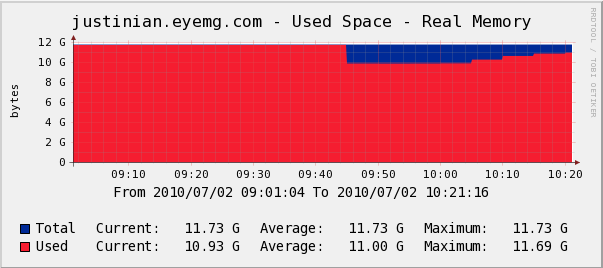
A newer feature that can be used with KVM is called KSM (Kernel Shared Memory Pages) ((http://www.ibm.com/developerworks/linux/library/l-kernel-shared-memory/index.html)). KSM allows KVM hosts to consolidate memory pages which are identical between guest virtual machines. On our HA pair running 15 RHEL5 virtual machines, we recouped 2GB of physical memory.
Below is a graph demonstrating memory usage when we implemented KSM. Notice that the memory usage dropped off by about 2 GB, which the Linux Kernel then began to slowly use for caching and buffers.
[](http://crunchtools.com/wp-content/uploads/2010/07/ksmtuned.png)
Tuning KSM is beyond the scope of this tutorial but the following script, written by Red Hat, can be used to assist in controlling how aggressively the Kernel will try and merge memory pages. ((http://www.redhat.com/archives/fedora-virt/2009-September/msg00023.html))
#!/bin/bash
#
# Copyright 2009 Red Hat, Inc. and/or its affiliates.
# Released under the GPL
#
# ksmd Kernel Samepage Merging Daemon
#
# chkconfig: - 85 15
# description: The Kernel Samepage Merging control Daemon is a simple script \
# that controls whether (and with what vigor) should ksm search \
# duplicated pages.
# processname: ksmd
# config: /etc/ksmd.conf
# pidfile: /var/run/ksmd.pid
#
### BEGIN INIT INFO
# Provides: ksmd
# Required-Start:
# Required-Stop:
# Should-Start:
# Short-Description: tune the speed of ksm
# Description: The Kernel Samepage Merging control Daemon is a simple script
# that controls whether (and with what vigor) should ksm search duplicated
# memory pages.
# needs testing and ironing. contact danken redhat com if something breaks.
### END INIT INFO
###########################
if [ -f /etc/ksmd.conf ]; then
. /etc/ksmd.conf
fi
KSM_MONITOR_INTERVAL=${KSM_MONITOR_INTERVAL:-60}
KSM_NPAGES_BOOST=${KSM_NPAGES_BOOST:-300}
KSM_NPAGES_DECAY=${KSM_NPAGES_DECAY:--50}
KSM_NPAGES_MIN=${KSM_NPAGES_MIN:-64}
KSM_NPAGES_MAX=${KSM_NPAGES_MAX:-1250}
# microsecond sleep between ksm scans for 16Gb server. Smaller servers sleep
# more, bigger sleep less.
KSM_SLEEP=${KSM_SLEEP:-10000}
KSM_THRES_COEF=${KSM_THRES_COEF:-20}
KSM_THRES_CONST=${KSM_THRES_CONST:-2048}
total=`awk '/^MemTotal:/ {print $2}' /proc/meminfo`
[ -n "$DEBUG" ] && echo total $total
npages=0
sleep=$[KSM_SLEEP * 16 * 1024 * 1024 / total]
[ -n "$DEBUG" ] && echo sleep $sleep
thres=$[total * KSM_THRES_COEF / 100]
if [ $KSM_THRES_CONST -gt $thres ]; then
thres=$KSM_THRES_CONST
fi
[ -n "$DEBUG" ] && echo thres $thres
KSMCTL () {
if [ -x /usr/bin/ksmctl ]; then
/usr/bin/ksmctl $*
else
case x$1 in
xstop)
echo 0 > /sys/kernel/mm/ksm/run
;;
xstart)
echo $2 > /sys/kernel/mm/ksm/pages_to_scan
echo $3 > /sys/kernel/mm/ksm/sleep
echo 1 > /sys/kernel/mm/ksm/run
;;
esac
fi
}
committed_memory () {
# calculate how much memory is committed to running qemu processes
local progname
progname=${1:-qemu}
ps -o vsz `pgrep $progname` | awk '{ sum += $1 }; END { print sum }'
}
increase_napges() {
local delta
delta=${1:-0}
npages=$[npages + delta]
if [ $npages -lt $KSM_NPAGES_MIN ]; then
npages=$KSM_NPAGES_MIN
elif [ $npages -gt $KSM_NPAGES_MAX ]; then
npages=$KSM_NPAGES_MAX
fi
echo $npages
}
adjust () {
local free committed
free=`awk '/^MemFree:/ { free += $2}; /^Buffers:/ {free += $2}; /^MemCached:/ {free += $2}; END {print free}' /proc/meminfo`
committed=`committed_memory`
[ -n "$DEBUG" ] && echo committed $committed free $free
if [ $[committed + thres] -lt $total -a $free -gt $thres ]; then
KSMCTL stop
[ -n "$DEBUG" ] && echo "$[committed + thres] < $total and free > $thres, stop ksm"
return 1
fi
[ -n "$DEBUG" ] && echo "$[committed + thres] > $total, start ksm"
if [ $free -lt $thres ]; then
npages=`increase_napges $KSM_NPAGES_BOOST`
[ -n "$DEBUG" ] && echo "$free < $thres, boost" else npages=`increase_napges $KSM_NPAGES_DECAY` [ -n "$DEBUG" ] && echo "$free > $thres, decay"
fi
KSMCTL start $npages $sleep
[ -n "$DEBUG" ] && echo "KSMCTL start $npages $sleep"
return 0
}
loop () {
while true
do
sleep $KSM_MONITOR_INTERVAL
adjust
done
}
###########################
. /etc/rc.d/init.d/functions
prog=ksmd
pidfile=${PIDFILE-/var/run/ksmd.pid}
RETVAL=0
start() {
echo -n $"Starting $prog: "
daemon --pidfile=${pidfile} $0 loop
RETVAL=$?
echo
return $RETVAL
}
stop() {
echo -n $"Stopping $prog: "
killproc -p ${pidfile}
RETVAL=$?
echo
}
signal () {
pkill -P `cat ${pidfile}` sleep
}
case "$1" in
start)
start
;;
stop)
stop
;;
status)
status -p ${pidfile} $prog
RETVAL=$?
;;
restart)
stop
start
;;
signal)
signal
;;
loop)
RETVAL=1
if [ -w `dirname ${pidfile}` ]; then
loop &
echo $! > ${pidfile}
RETVAL=$?
fi
;;
*)
echo $"Usage: $prog {start|stop|status|signal|help}"
RETVAL=3
esac
exit $RETVAL
Add to default start up
chkconfig --add ksmd
chkconfig ksmd on
## Final Notes
In our environment, we have decided to manually start cluster services and mount the DRBD partition, but in a different environment it may be useful to have a startup script that will automatically mount/unmount the drbd volume. The unmount is especially useful if an administrator forgets to unmount before doing a reboot. The following script can be used as an example. Remember it should unmount very early in the reboot process, before cluster services stop or there will be problems.
#!/bin/bash
#
# chkconfig: 345 01 99
# description: Mounts and unmounts drbd partitions
#
#
### BEGIN INIT INFO
# Provides:
### END INIT INFO
. /etc/init.d/functions
start()
{
echo "Mounting DRBD partitions:"
#mount /dev/drbd0 /srv/vmdata
tmp=$?
[ $rtrn -eq 0 ] || rtrn=$tmp
return $rtrn
}
stop()
{
echo "Unmounting DRBD partitions:"
mount /dev/drbd0 /srv/vmdata
tmp=$?
[ $rtrn -eq 0 ] || rtrn=$tmp
return $rtrn
}
status()
{
echo ""
mount | grep drbd
}
case "$1" in
start)
start
rtrn=$?
;;
stop)
stop
rtrn=$?
;;
restart)
stop
start
rtrn=$?
;;
status)
status
rtrn=$?
;;
*)
echo $"Usage: $0 {start|stop|restart|status}"
;;
esac
exit $rtrn
# Testing & Performance
- Ping Pong: Small C program used to check plocks/sec performance in GFS2
- Bonnie++: All disk I/O was generated with bonnie++. Bonnie++ also provides results on benchmarking
- iostat: Disk I/O was also measured with iostat during the bonnie++ testing to confirm results
- sar: Network traffic was monitored with sar to verify the network I/O was coherent with the disk I/O data
## Analysis
When generating these performance numbers there is a desire to run the tests for months and months to get everything just perfect, but at some point, you must say that enough is enough. I ran these tests over about 3 days and eventually came to the conclusion that the performance was good enough given the price point. Since the main I/O performed by a virtual machine host is on large virtual disk files, I paid special attention to sequential read/write times in bonnie++ and these numbers seemed acceptable to me.
## Disk I/O
### GFS2
To verify that all of the GFS2 setting are correct use the following small test program called [Ping Pong](http://wiki.samba.org/index.php/Ping_pong). Before the above changes, the maximum number of locks displayed by Ping Pong was about 95/sec. After the above changes, performance should be similar to the following Ping Pong output.
./ping_pong /srv/vmdata/.test.img.AdOCCZ 3
1959 locks/sec
### Bonnie++
The following command was used to benchmark disk I/O.
`bonnie++ -u root:root -d /srv/vmdata/bonnie -s 24g -n 16:524288:262144:128`
Results from Bonnie++ showed that we could achieve sequential reads of almost 300MB/s and writes of almost 90MB/s. This is with GFS over DRBD connected thorugh 3 bonded 1Gb ethernet interfaces.
Version 1.03d ------Sequential Output------ --Sequential Input- --Random-
-Per Chr- --Block-- -Rewrite- -Per Chr- --Block-- --Seeks--
Machine Size K/sec %CP K/sec %CP K/sec %CP K/sec %CP K/sec %CP /sec %CP
justinian.eyemg 24G 61222 66 93885 17 55436 13 62426 77 297893 20 834.7 2
------Sequential Create------ --------Random Create--------
-Create-- --Read--- -Delete-- -Create-- --Read--- -Delete--
files:max:min /sec %CP /sec %CP /sec %CP /sec %CP /sec %CP /sec %CP
16:524288:262144/128 153 8 6691 99 797 1 154 10 7340 99 838 0
Version 1.03d ------Sequential Output------ --Sequential Input- --Random-
-Per Chr- --Block-- -Rewrite- -Per Chr- --Block-- --Seeks--
Machine Size K/sec %CP K/sec %CP K/sec %CP K/sec %CP K/sec %CP /sec %CP
justinian.eyemg 24G 62129 70 109602 20 56278 14 68517 81 272822 18 678.3 2
------Sequential Create------ --------Random Create--------
-Create-- --Read--- -Delete-- -Create-- --Read--- -Delete--
files:max:min /sec %CP /sec %CP /sec %CP /sec %CP /sec %CP /sec %CP
16:524288:262144/128 157 7 7424 100 952 1 167 9 7859 100 892 0
### iostat
The following command was used to measure disk I/O. A 10 second interval was used to smooth out peaks/valleys.
`iostat 10 1000`
IOstat confirms bursts of over 200MB/s for 10 second periods
avg-cpu: %user %nice %system %iowait %steal %idle
0.03 0.00 5.05 2.27 0.00 92.65
Device: tps Blk_read/s Blk_wrtn/s Blk_read Blk_wrtn
cciss/c0d0 2147.45 263568.43 71322.68 2638320 713940
cciss/c0d0p1 0.40 0.00 0.00 0 0
cciss/c0d0p2 0.00 0.00 0.00 0 0
cciss/c0d0p3 2147.05 0.00 0.00 0 0
drbd0 14999.80 263613.99 71953.65 2638776 720256
### ifstat
The following command was used to measure network I/O. A 10 second interval was used to smooth out peaks/valleys. Sar provides a wealth of information, but we are using it for it's network I/O capabilities.
`ifstat -i bond0,eth1,eth2,eth3 10 100`
IFstat verifies bursts in network I/O confirming that all three ethernet devices are, indeed, being used.
bond0 eth1 eth2 eth3
KB/s in KB/s out KB/s in KB/s out KB/s in KB/s out KB/s in KB/s out
5595.88 85737.73 1825.36 27888.29 1859.94 28533.83 1910.58 29315.61
7138.62 120077.8 2415.18 40616.06 2396.77 40135.20 2326.66 39326.54
1866.50 29556.57 619.61 9808.99 616.80 9796.27 630.09 9951.30
3108.05 48864.68 1027.49 16131.30 1036.16 16286.92 1044.40 16446.45
8232.06 131049.1 2743.40 43496.98 2754.60 43750.01 2734.06 43802.10
1383.60 22140.48 479.53 7716.90 455.99 7276.79 448.09 7146.79
---
## Categories
- Articles
---
## Navigation
- [Home](https://crunchtools.com/)
- [Articles](https://crunchtools.com/category/articles/)
- [Events](https://crunchtools.com/category/events/)
- [News](https://crunchtools.com/category/news/)
- [Presentations](https://crunchtools.com/category/presentations/)
- [Software](https://crunchtools.com/software/)
- [Beaver Backup](https://crunchtools.com/software/beaver-backup/)
- [Check BGP Neighbors](https://crunchtools.com/software/check-bgp-neighbors-nagios/)
- [Chev](https://crunchtools.com/software/chev-check-vulnerabilities-script/)
- [Graph BGP Neighbors](https://crunchtools.com/software/grpah-bgp-neighbors/)
- [Graph MySQL Stats](https://crunchtools.com/software/graph-mysql-stats/)
- [Graph Sockets Pipes Files](https://crunchtools.com/software/graph-sockets-pipes-files/)
- [MCP Servers](https://crunchtools.com/software/mcp-servers/)
- [Petit](https://crunchtools.com/software/petit/)
- [Racecar](https://crunchtools.com/software/racecar/)
- [Shiva](https://crunchtools.com/software/shiva/)
- [Trentina](https://crunchtools.com/software/trentina/)
- [About](https://crunchtools.com/about/)
- [Home](https://crunchtools.com)
## Tags
- High Availability
- RHEL
- Virtualization