---
# Unix/Linux Filesystem Permissions 101
**URL:** https://crunchtools.com/unixlinux-filesystem-permissions-101/
Date: 2010-07-19
Author: fatherlinux
Post Type: post
Summary: Background Standard Unix filesystem permissions are less complex than Windows file system permissions and Linux ACLs. Though, this lacks flexibility which is sometimes needed, In many cases it can be leveraged as an advantage. Often the complexity of ACLs can allow administrators to create file system permissions which are cumbersome to audit and document. TheContinue Reading "Unix/Linux Filesystem Permissions 101" →Continue Reading "Unix/Linux Filesystem Permissions 101" →
Categories: Articles
Tags: Systems Administration, Tutorials
---
[toc]
# Background
Standard [Unix filesystem permissions](http://en.wikipedia.org/wiki/Filesystem_permissions) are less complex than Windows file system permissions and Linux [ACLs](http://www.suse.de/~agruen/acl/linux-acls/online/). Though, this lacks flexibility which is sometimes needed, In many cases it can be leveraged as an advantage. Often the complexity of ACLs can allow administrators to create file system permissions which are cumbersome to audit and document. The simplicity of standard Unix permissions allows both administrator and the data owners to have a clear understanding of how users will be able to access file data.
Though standard Unix file system permissions are simple, there are still caveats to understanding all of the use cases clearly. The following tutorial will attempt to demonstrate these use cases and caveats in a clear and concise manner.
Finally, this tutorial will demonstrate how to conduct rational experiments that demonstrate the behavior of file permissions in some of the use cases which have caveats.
# Basics
## Who
A standard Unix/Linux file has nine permission flags that are divided into three sections. It can only be owned by one **user** and one **group**. The third class is for everyone else.
- **User (u)**: User that owns/controls the file
- **Group (g**): Group that owns/controls the file
- **Other (o)**: Anyone that are not the owner or in the group
## What
- **File**: Most objects that can be found in the file system are files
- **Directory**: A directory is a special file that contains other files
## How
- **Read (r)**: Permit read access
- **Write (w)**: Permit write access
- **Execute (x)**: Permit execution or listing of directory
- **Set Identity (s)**: Set user or group identtiy bit
- **Sticky Bit (t)**:
- **Conditional Execute (X)**: This will set the execute bit on directories and any file that has execute permission for some user already
## Matrix
[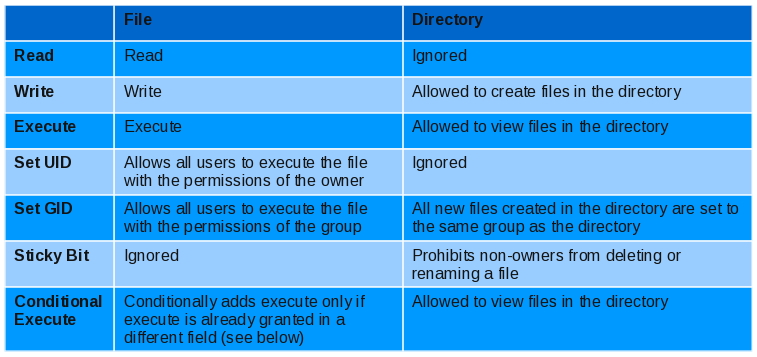](http://crunchtools.com/wp-content/uploads/2010/07/Unix_Permissions.png)
## Listing Permissions
The simplest way to display permission information is with the list command
`ls -alh /bin/ls`
Output:
`-rwxr-xr-x 1 root root 92K Nov 27 2006 /bin/ls`
## Setting Permissions
Permissions are set with the **chmod** command. They can be specified two different ways, with numbers or letters. Notice the characters specified in the tables above, they will apply here.
### The Character Method
First create a file in your home directory
`touch test`
Look at the file. Notice that it has been created with the default permissions for your system. This will be covered in a later tutorial.
`ls -alh test`
Output:
`-rw-rw-r-- 1 smccarty smccarty 0 Jul 16 16:50 test`
Now, allow all users to execute the file
`chmod o+x test`
Now, look at the file again. Notice that the third permissions section is now "r-x", this is because the execute permission has been added for all users.
`ls -alh test`
Output:
`-rw-rw-r-x 1 smccarty smccarty 0 Jul 16 16:50 test`
### The Numeric Method
The second way to specify standard Unix/Linux file system permissions is numerically. This method can be difficult for a beginning systems administrator or web developer but are covered lightly here for consistency, This method requires a basic understanding of the [binary numeral system](http://en.wikipedia.org/wiki/Binary_numeral_system). Numeric specification of file permissions will be covered further in the advanced tutorial.
The following section demonstrates the exact same procedure as above, but instead will set the permissions explicitly using the numeric method.
First create a file in your home directory
`touch test`
As before, look at the file and notice the default permissions have been set
`ls -alh test`
Output:
`-rw-rw-r-- 1 smccarty smccarty 0 Jul 16 16:50 test`
Now we are going to grant execute access to all users with the numeric method. If you are familiar with binary, you will notice that the "rwx" flags correspond to the a three bit binary number
`chmod 665 test`
Again, look at the file again. Notice that the third permissions section is now "r-x", this is because the execute permission has been explicitly specified for all users.
`ls -alh test`
Output:
`-rw-rw-r-x 1 smccarty smccarty 0 Jul 16 16:50 test`
# Experiments
## Sticky Bit
Generally, the sticky bit is ignored for files, but this has a special effect with directories. Look at /tmp and notice that the sticky bit is set. This allows system users to create files, but prevents other users from deleting or renaming them. Since /tmp has the sticky bit set, it can safely be used by all users
`ls -alhd /bin/tmp`
Output:
`drwxrwxrwt 11 root root 4.0K Jul 16 16:04 /tmp`
Now, create two new users for testing
sudo useradd smccarty1
sudo useradd smccarty2
Now create a file as USER1 and change the permissions to be world writable
sudo su - smccarty1
touch /tmp/smccarty1
chmod 777 /tmp/smccarty1
exit
Now look at the file. Notice that it is readable, write-able and executable by all users.
ls -alh /tmp/smccarty1
Output:
-rwxrwxrwx 1 smccarty1 smccarty1 0 Jul 18 15:50
Now switch to the other user and try and delete the file
sudo su - smccarty2
rm /tmp/smccarty1
Output:
rm: cannot remove `/tmp/smccarty1': Operation not permitted
Given that this file has permissions of rwxrwxrwx, it would normally be deleted, but since the sticky bit is set on on /tmp, it cannot. Interesting, our hypothesis based on the documentation is correct.
## Set UID/GUID Directories
Change to one of the users we just created and create two test directories. Set the UID and GID bits on the second one. Then set the permissions on both directories to **world writable**
sudo su - smccarty1
mkdir /tmp/smccarty1-directory1
mkdir /tmp/smccarty1-directory2
chmod u+s /tmp/smccarty1-directory2
chmod g+s /tmp/smccarty1-directory2
chmod 777 /tmp/smccarty1-directory*
exit
Now look at the two directories and notice their permissions. The **"s"** character in place of the **"x"** indicates that the UID and GID bits are set
ls -alhd /tmp/smccarty1-directory*
Output:
drwxrwxrwx 2 smccarty1 smccarty1 4.0K Jul 18 22:33 /tmp/smccarty1-directory1
drwsrwsrwx 2 smccarty1 smccarty1 4.0K Jul 18 22:33 /tmp/smccarty1-directory2
Now as the other user, create test files in both directories
touch /tmp/smccarty1-directory1/test
touch /tmp/smccarty1-directory2/test
exit
Look at the permissions on each of the files created. Notice that the files created in the first directory have the owner and group set to smccarty2 while the files in the second directory have the group set to smccarty1. This is because the GID bit was set. Notice that the UID bit was ignored ((http://en.wikipedia.org/wiki/Setuid#setuid_and_setgid_on_directories)), this is normal behavior in Linux.
ls -alh /tmp/smccarty1-directory*/test
Output:
-rw-rw-r-- 1 smccarty2 smccarty2 0 Jul 18 22:40 /tmp/smccarty1-directory1/test
-rw-rw-r-- 1 smccarty2 smccarty1 0 Jul 18 22:40 /tmp/smccarty1-directory2/test
Note: this behavior is not documented well in the man page for [chmod](http://linuxmanpages.com/man1/chmod.1.php)
## Conditional Execute Bit
Create a new test directory and set the permissions.
sudo su - smccarty1
mkdir /tmp/smccarty1-directory3
chmod 700 /tmp/smccarty1-directory3
Now, create two test files and set the execute bit for the owner on the second file.
touch /tmp/smccarty1-directory3/test1
touch /tmp/smccarty1-directory3/test2
chmod 764 /tmp/smccarty1-directory3/test2
exit
Now look at the permissions. Notice the directory is only readable by the owner and the second file **test2** is only executable by the owner, which is **smccarty1**
ls -alh /tmp/smccarty1-directory3/
Output:
drwx------ 2 smccarty1 smccarty1 4.0K Jul 18 23:19 .
drwxrwxrwt. 64 root root 12K Jul 18 23:19 ..
-rw-rw-r-- 1 smccarty1 smccarty1 0 Jul 18 23:19 test1
-rwxrw-r-- 1 smccarty1 smccarty1 0 Jul 18 23:19 test2
Now conditionally set the execute bit on all three files and let's see what happens.
chmod g+X /tmp/smccarty1-directory3
chmod g+X /tmp/smccarty1-directory3/test1
chmod g+X /tmp/smccarty1-directory3/test2
Notice that the directory **/tmp/smccarty1-directory3** is now readable by the group, the file **test1** did not change, and the file **test2** had the execute bit set for group because it already had it set for the owner.
ls -alh /tmp/smccarty1-directory3/
Output:
drwx--x--- 2 smccarty1 smccarty1 4.0K Jul 18 23:19 .
drwxrwxrwt. 64 root root 12K Jul 18 23:19 ..
-rw-rw-r-- 1 smccarty1 smccarty1 0 Jul 18 23:19 test1
-rwxrwxr-- 1 smccarty1 smccarty1 0 Jul 18 23:19 test2
---
## Categories
- Articles
---
## Navigation
- [Home](https://crunchtools.com/)
- [Articles](https://crunchtools.com/category/articles/)
- [Events](https://crunchtools.com/category/events/)
- [News](https://crunchtools.com/category/news/)
- [Presentations](https://crunchtools.com/category/presentations/)
- [Software](https://crunchtools.com/software/)
- [Beaver Backup](https://crunchtools.com/software/beaver-backup/)
- [Check BGP Neighbors](https://crunchtools.com/software/check-bgp-neighbors-nagios/)
- [Chev](https://crunchtools.com/software/chev-check-vulnerabilities-script/)
- [Graph BGP Neighbors](https://crunchtools.com/software/grpah-bgp-neighbors/)
- [Graph MySQL Stats](https://crunchtools.com/software/graph-mysql-stats/)
- [Graph Sockets Pipes Files](https://crunchtools.com/software/graph-sockets-pipes-files/)
- [MCP Servers](https://crunchtools.com/software/mcp-servers/)
- [Petit](https://crunchtools.com/software/petit/)
- [Racecar](https://crunchtools.com/software/racecar/)
- [Shiva](https://crunchtools.com/software/shiva/)
- [About](https://crunchtools.com/about/)
- [Home](https://crunchtools.com)
## Tags
- Systems Administration
- Tutorials