
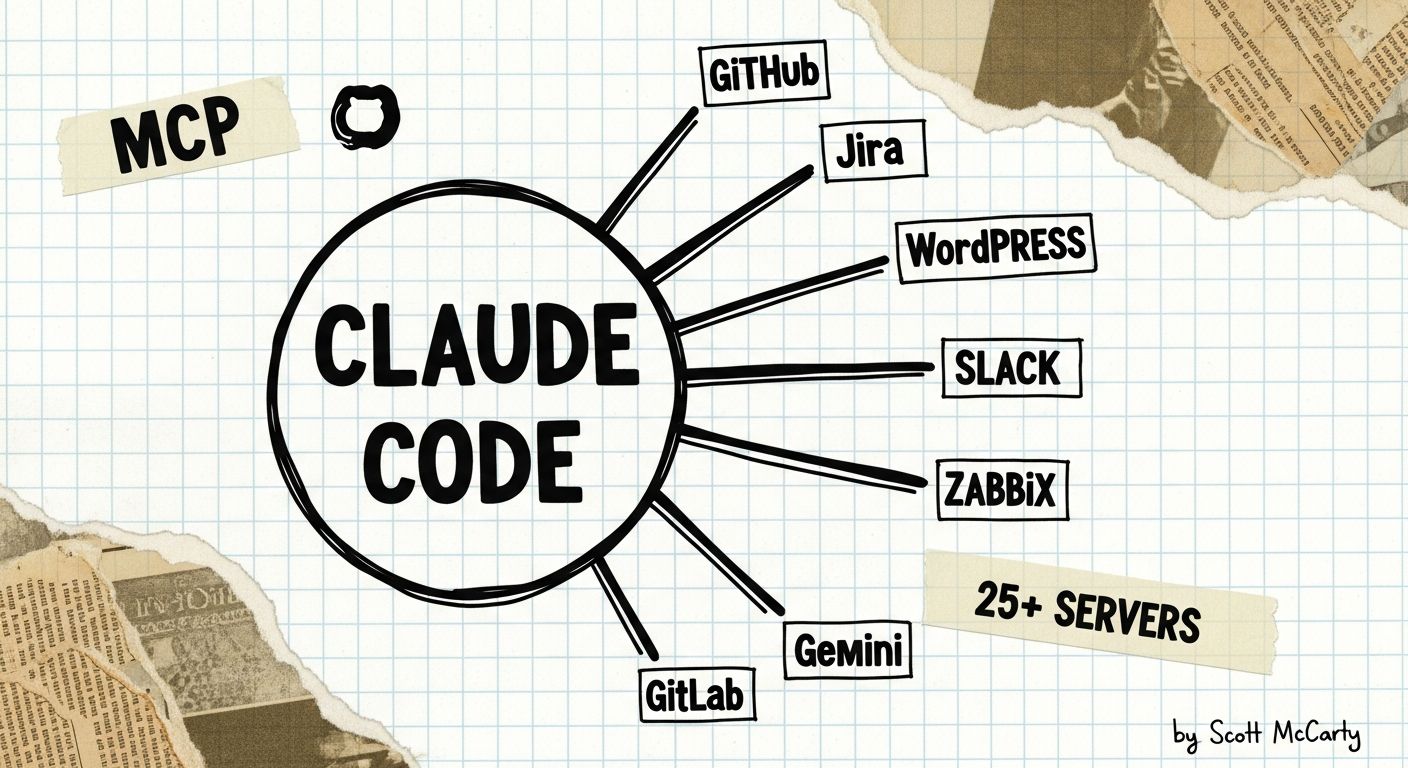
I’ve been building MCP servers for the last couple of months, and at this point I have over 25 of them wired into Claude Code. If you’re not familiar with MCP, it’s a protocol that lets AI assistants connect directly to external tools and data sources. Instead of copying and pasting information between applications, you give your AI assistant structured access to your Jira tickets, your DNS records, your WordPress sites, your monitoring tools, and your ticketing systems. Claude Code is the AI client, and MCP servers are the connectors that give it access to each system.
I think the best way to explain this setup is to just walk through the whole thing — what servers I’m running, which ones I built myself, which are upstream open source, and how the architecture works under the covers. My hope is that this serves as a practical guide for anyone who wants to replicate something similar, whether you start with two servers or twenty.
What Is MCP?
Model Context Protocol (MCP) is a standard for connecting AI assistants to external tools and data sources. The idea is pretty simple: each MCP server exposes a set of tools that Claude Code can call directly. Want to look up a Jira ticket? There’s a tool for that. Want to publish a blog post to WordPress? There’s a tool for that too. My setup currently has over 500 tools across 25+ servers, which means Claude Code can reach into almost every system I work with on a daily basis.
The Full Inventory
I think it helps to see everything laid out in one place. I’ve organized them by who built them, because that matters when you’re deciding what to trust in your own setup.
CrunchTools Servers (I Built These)
These are all open source, published to both PyPI and Quay.io, and they follow a shared architecture that I’ll describe later. Altogether we’re talking about 190 tools across 7 servers.
| Server | Tools | What It Does |
|---|---|---|
| mcp-gitlab | 61 | Projects, MRs, issues, pipelines, files, branches, search. Works with any GitLab instance. |
| mcp-gemini | 39 | Google Gemini AI. Image generation, document analysis, deep research, video, text-to-speech. |
| mcp-wordpress | 30 | Posts, pages, media, comments. I run two instances, one for each blog. |
| mcp-cloudflare | 18 | DNS records, transform rules, page rules, cache purging. |
| mcp-request-tracker | 16 | RT ticket management. Search, create, update, time tracking. |
| mcp-slack | 15 | Read-only Slack access. Channels, messages, threads, search. |
| mcp-workboard | 11 | WorkBoard OKRs. Objectives, key results, check-ins. |
Every one of these ships three ways: uvx for zero-install, pip for virtual environments, and podman run for containers. I run them all as containers managed by systemd user services, which I’ll explain in the architecture section.
Upstream Servers (Open Source, Not Mine)
These are MCP servers built by other projects that I use as-is or with minor containerization. I think it’s worth calling out where each one comes from so you can evaluate them yourself.
| Server | Source | What It Does |
|---|---|---|
| GitHub | github/github-mcp-server | Issues, PRs, repos, code search, releases. Official GitHub server. |
| Google Workspace (x2) | google_workspace_mcp | Gmail, Drive, Calendar, Docs, Sheets, Tasks, Contacts. I run one instance per Google account. |
| Jira/Atlassian | mcp-atlassian | Issues, boards, sprints, comments, transitions, development info. |
| Linode | linode-mcp | Full Linode API. Instances, volumes, firewalls, DNS, databases, Kubernetes. |
| pCloud | Community | Cloud storage. List, search, read files, create folders. |
| Puppeteer | @anthropic/puppeteer | Browser automation. Navigate, screenshot, click, fill forms. |
| Memory | mcp-memory | Persistent semantic memory with hybrid SQLite-vec + Cloudflare backend. |
| VoiceMode | Community | Voice conversation capability. |
| Zabbix | zabbix-mcp-server | Infrastructure monitoring. Hosts, triggers, problems, history. |
| Postiz | postiz-app | Social media scheduling. LinkedIn, X, Mastodon, Threads, Facebook, Bluesky. |
| MediaWiki | Community | Search and read wiki pages. I use this for Fedora Wiki access. |
| Pagure | pagure-mcp | Fedora/CentOS upstream development. Issues, PRs, projects. |
Red Hat Lightspeed MCP Tools
These come from Red Hat’s console.redhat.com platform. They give Claude Code access to RHEL infrastructure management, which is incredibly useful for my day job as the lead PM for RHEL.
| Server | What It Does |
|---|---|
| Image Builder | Create custom RHEL/CentOS/Fedora disk images, ISOs, and VM images |
| Vulnerability | CVE management, system exposure analysis, remediation playbooks |
| Advisor | RHEL system recommendations and risk detection |
| Inventory | Host details, system profiles, installed packages |
| Content Sources | Repository management and content filtering |
| RBAC | Role-based access control for Insights services |
| RHSM | Subscription management and activation keys |
| Remediations | Ansible playbook generation for fixes |
| Planning | RHEL lifecycle, roadmap, upcoming changes |
The Architecture
All of this runs on a single RHEL 10 workstation. Every server runs in a rootless Podman container managed by a systemd user service. I’m pretty happy with how this architecture turned out, because it means I don’t need root access for any of it, and the servers start automatically when I log in.
Port Allocation
Each server gets a fixed port on localhost. I keep a simple table so I don’t lose track of what’s where:
| Port | Server |
|---|---|
| 8001 | mcp-cloudflare |
| 8002 | mcp-wordpress (crunchtools.com) |
| 8003 | mcp-wordpress (educatedconfusion.com) |
| 8004 | mcp-request-tracker |
| 8006 | mcp-gemini |
| 8007 | mcp-workboard |
| 8010 | google-workspace (work) |
| 8011 | google-workspace (personal) |
| 8014 | github |
| 8015 | mcp-gitlab |
Claude Code connects to each one with a simple HTTP config:
{
  "type": "http",
  "url": "http://127.0.0.1:8001/mcp"
}
Container Pattern
Every container follows the same deployment pattern, which makes it easy to add new servers. Here’s what the Cloudflare one looks like:
podman run -d --name mcp-cloudflare \
  -p 127.0.0.1:8001:8000 \
  --env-file ~/.config/mcp-env/mcp-cloudflare.env \
  quay.io/crunchtools/mcp-cloudflare \
  --transport streamable-http --host 0.0.0.0
Secrets live in env files under ~/.config/mcp-env/. The container binds to 0.0.0.0 inside so Podman’s port mapping works, but the host only listens on 127.0.0.1, so nothing is exposed to the network. I think this is a reasonable security posture for a workstation deployment.
Shared File Directory
One challenge I ran into early on is that MCP servers sometimes need to pass files to each other. For example, Gemini generates a thumbnail image, and then WordPress needs to upload it. The solution I landed on is a shared directory that all the containers mount:
- Host path:
~/.local/share/mcp-uploads-downloads/ - Gemini sees:
/output/ - WordPress sees:
/tmp/mcp-uploads/
Each container mounts the same host directory at its own internal path. I set permissions to 777 so rootless containers can write to it, which isn’t ideal from a security standpoint but works fine for a single-user workstation.
Systemd User Services
Every server has a systemd user service file under ~/.config/systemd/user/. This gives me a few nice properties:
- Servers start automatically on login
systemctl --user restart mcp-cloudflarewhen I need to bounce onejournalctl --user -u mcp-cloudflarefor logs- No root required for any of it
CrunchTools Server Architecture
All seven crunchtools servers share the same internal design, which I think is important if you’re going to build and maintain multiple servers. Having a consistent architecture means I can add new ones quickly.
Five-layer security model: Token protection (SecretStr, env-var-only), input validation (Pydantic with extra="forbid"), API hardening (TLS, timeouts, size limits), operation safety (no filesystem access, no shell, no eval), and supply chain security (weekly CVE scans, Hummingbird containers, gourmand AI slop detection).
Two-layer tool pattern: server.py handles MCP registration and argument validation, while tools/*.py handles the actual API logic. client.py handles HTTP communication with auth headers and pagination. This separation makes it much easier to add new tools without touching the plumbing.
Hummingbird containers: All containers use Hummingbird Python base images instead of the typical Debian-based Python images. A typical Debian Python image has 100-200 CVEs at any given time. Hummingbird has fewer than 10.
Skills: Where Servers Become Workflows
MCP servers are building blocks, but the real power comes when you chain them together into workflows. Claude Code supports custom skills defined in ~/.claude/skills/, where each skill is a markdown file with a detailed prompt that tells Claude Code how to orchestrate multiple MCP servers for a specific task. I currently have nine skills:
| Skill | What It Does | MCP Servers Used |
|---|---|---|
| /draft-blog | Write, thumbnail, publish, promote a blog post | Gemini, WordPress, Postiz, Cloudflare, Puppeteer, Memory |
| /draft-email | Draft HTML emails with signature | Google Workspace |
| /draft-meeting-invite | Create calendar invites from templates | Google Workspace, GitHub, Jira |
| /draft-trip-report | File trip reports from conferences | Jira |
| /todos | Manage Google Tasks | Google Workspace |
| /draft-jira-comment | Generate Jira comments from source material | Jira, Gemini |
| /draft-social-post | Draft and schedule social media | Postiz |
| /draft-jira-feature | Create Feature tickets under Market Problems | Jira |
| /mcp-scout | Discover and vet new MCP servers | Web search, GitHub |
The /draft-blog skill is probably the best example of what this looks like in practice. I type /draft-blog container security best practices and Claude Code goes through a whole workflow: it searches memory for the crunchtools brand identity and thumbnail style, drafts the post, iterates with me until I approve, uploads the draft to WordPress, generates three thumbnail options via Gemini, displays them via Puppeteer so I can pick one, uploads the chosen thumbnail to WordPress, publishes the post, purges the Cloudflare cache, generates social media posts for all six platforms, and schedules them via Postiz spread across the week. That’s six MCP servers orchestrated by one skill, all from a single command.
Memory: Why This Matters
I want to call out the Memory MCP server specifically because I think it’s the most underrated piece of this whole setup. It gives Claude Code persistent memory across sessions. When I start a new session, Claude Code searches memory for context about whatever I’m working on. It knows my brand identities, my infrastructure layout, my preferences, past decisions, and project history.
The backend is hybrid: local SQLite-vec for fast reads (about 5ms) and Cloudflare D1 plus Vectorize for cloud sync. Memories are tagged and searchable by semantic similarity, exact match, or time range.
This is what makes the skills work well in practice. When /draft-blog runs, Claude Code doesn’t ask me about the crunchtools thumbnail style every time because it remembers from previous sessions. Without persistent memory, you’d have to re-explain your preferences and context at the start of every session, which defeats a lot of the efficiency gains.
CLAUDE.md: The Guardrails
Everything starts with ~/.claude/CLAUDE.md. This file tells Claude Code how to behave in every session. If you’re running on RHEL or any Red Hat platform, I think this is the single most important thing you can set up. My CLAUDE.md includes:
- RHEL development standards: Use dnf, not apt. Use Podman, not Docker. Use Containerfile, not Dockerfile. Assume SELinux is enforcing. Never suggest
setenforce 0. - Memory-first workflow: Always search memory before making assumptions. Store new learnings at the end of sessions.
- Commit standards: Semantic versioning for all commits and releases.
Without this file, Claude Code is a generic AI assistant that will happily suggest apt install on a RHEL system. With it, Claude Code works like someone who actually knows your environment and your toolchain.
How to Get Started
You don’t need 25 servers on day one. I’d recommend starting small and adding more as you find friction in your daily workflow.
Step 1: Set up CLAUDE.md. Copy the RHEL development standards into ~/.claude/CLAUDE.md. This takes five minutes and immediately improves every session you run.
Step 2: Add Memory. I think the Memory MCP server is the most useful thing you can add after CLAUDE.md. Once Claude Code can remember things across sessions, everything gets better because you stop repeating yourself.
Step 3: Pick two servers that match your daily work. If you manage infrastructure, start with Cloudflare and Linode. If you write code, start with GitHub and GitLab. If you publish content, start with WordPress and Gemini.
Step 4: Containerize and systemd-ify. Run each server as a rootless Podman container with a systemd user service. This way they start on login and you don’t have to think about them again.
Step 5: Build skills. Once you have a few servers running, write skills that chain them together. Start by documenting a workflow you repeat every week, then turn it into a skill file.
All seven crunchtools servers are open source and published on PyPI. The fastest way to try one is a single command:
claude mcp add mcp-cloudflare-crunchtools \
    --env CLOUDFLARE_API_TOKEN=your_token \
    -- uvx mcp-cloudflare-crunchtools
No containers, no systemd, no port allocation needed for that first test. The containerized setup comes later when you want persistence and automatic startup.
Why Bother
I have been using terminals for 25 years. The interface has not changed. Text in, text out, blinking cursor. What changed is the reach.
It started with one remote machine. Then clusters. Then fleets of servers. Now I sit at a terminal and move information between 25 different systems without switching windows. I pull a Jira ticket, cross-reference it with a GitLab merge request, check the CVE exposure on the affected hosts, draft a response, and schedule a social media post about the fix. One terminal. One session. I wrote more about this idea in Command Line Terminal to The Universe.
The crazy part is not the AI. The crazy part is the speed at which I can implement new business logic. Need a workflow that pulls meeting notes from Google Docs, extracts action items, and files them as Jira tickets? I describe it in a skill file and it exists. Need to reformat data from one system into a report for another? Done before I finish my coffee. The barrier between “I want this” and “this works” collapsed.
I built the crunchtools servers because the upstream options for Cloudflare, WordPress, GitLab, Request Tracker, WorkBoard, and Slack either didn’t exist or didn’t meet my security standards. If you need one of those connectors, use mine. If an upstream server does the job, use that. The point is not which servers you pick. The point is that the terminal became a portal to your entire digital infrastructure, and MCP is the protocol that made it possible.